
TL;DR: Test automation reporting is important for communication and decision-making. Best practices include consistent naming, using display names and tags, linking related data, providing clear error messages, adding environment information, categorizing reports with features and stories, visualizing data with screenshots and recordings, and including the test data used. These things improve traceability, debugging, and report readability for all report consumers.
Motivation
Comprehensive reporting is essential for effective test automation, facilitating clear communication among stakeholders. Managers need high-level summaries to make informed decisions, testers require detailed reports to pinpoint issues, and developers need technical reports for debugging. Good reporting also enables continuous improvement by identifying trends and measuring effectiveness.
With this guide, we want to share best practices when it comes to test automation reporting based on what we’ve learned over the years. As an example, we are going to use Neodymium, but keep in mind that all the following suggestions can be applied to other tools and approaches too.
The Basic Numbers
When viewing a report, an immediate overview should provide the total number of executed test cases, along with the counts for passed, failed, and skipped tests. This quickly confirms that all tests ran and offers an instant gauge of the test run’s success. A pie chart can be a useful way to visualize this data.

Good Naming
Repository
Good naming doesn’t start with test cases or methods; it starts when setting up the test automation project. Packages and classes should benefit from good naming before test cases even exist. The following package structure is just our way of handling naming. So keep in mind that there are other options; it’s just important to be consistent.
This is an example of a typical project filesystem structure with Neodymium.
|
1 2 3 4 5 6 7 8 9 10 11 12 13 14 15 16 17 18 19 20 21 22 23 24 25 26 27 28 29 30 31 32 33 34 |
project-root/ ├── src/ │ └── test/ │ ├── java/ │ │ └── projectname/ │ │ ├── dataobjects/ │ │ │ ├── User.java │ │ │ ├── Product.java │ │ │ ├── HomepageTestData.java │ │ │ └── ... │ │ ├── pagesobjects/ │ │ │ ├── components │ │ │ │ ├── Header.java │ │ │ │ └── ... │ │ │ └── pages │ │ │ ├── HomePage.java │ │ │ └── ... │ │ ├── tests/ │ │ │ └── smoke/ │ │ │ ├── HomepageTest.java │ │ │ └── ... │ │ └── util/ │ │ ├── Helper.java │ │ └── ... │ └── resources/ │ └── projectname/ │ └── tests/ │ └── smoke/ │ ├── HomepageTest.json │ └── ... ├── config/ │ └── configuration.properties ├── pom.xml └── README.md |
Test Flow
An automatically generated test flow lacks logical steps and is often just a list of validations and interactions without any structure. That’s still better than no test flow at all, but if you want to properly organize it, you can use the @Step annotation provided by Allure or an equivalent. It is used to annotate methods to group their content and to give a fitting headline.


To achieve this, you just have to add the @Step annotation with a proper description to every public method implemented in your test suite. If some methods have parameters, you can also add them.
|
1 2 3 4 5 6 7 8 9 10 11 12 13 14 |
@Step("search for '{searchTerm}'") public void search(String searchTerm) { $("#search-field").val(searchTerm); $("#search-field").pressEnter(); } @Step("check the search results for '{searchTerm}'") public void validate(String searchTerm) { search("jeans"); $("#search-field-text-value").shouldBe(visible); $("#search-field-text-value").shouldHave(exactText("jeans")); } |
Severities
When a test fails, the first thing you want to know is the severity of the error. But how do you achieve that? Keywords can be used to add a severity like “low”, “medium”, “high” and “blocker” to your test cases to define their importance and to help the reviewer prioritize accordingly.

Blocker test cases are the most important ones. If they fail, a business relevant functionality doesn’t work. For websites, for example, that would be the checkout process. If during checkout something goes wrong the issue should be reported and fixed with the highest priority to not miss out on any orders. Test cases annotated with the keyword low are least important. If they fail, a minor issue has occurred that is not limiting any functionality, like a typo on a documentation page, for example.
Another keyword, KnownIssue, lets the reviewer know that the test failed due to an error that is already known and currently being worked on but not fixed yet. That saves the reviewer the time to go through the test results to check what exactly went wrong.

To add keywords to your test cases, you can use the @Tag annotation provided by JUnit. You can also use tags to simply add a list of the features tested, for example. Add as many tags as you want.
Data
Environment
Having all the environment information for a test run helps the reviewer understand the circumstances under which an error occurred. This includes, for example, the browser version, the environment under test, and perhaps even the version of the operating system used.
In Neodymium, we enabled the user to add as much environment information as needed to the report. Some information, such as the browser used, is added automatically.
Test Data
To properly reproduce an occurring error, the reviewer has to immediately find the used test data. So, we implemented a feature in Neodymium that adds a JSON view of the test data as an attachment to the corresponding test case in the report. Especially for non-technical users, that’s a huge time saver because there’s no need to find the used test data in the code itself.

Other Data
In addition to tags, test cases benefit from linking wiki pages of the tested story or the corresponding bug. A common use case is to link an issue in the product’s issue tracker combined with the tag “KnownIssue”. It not only lets the reviewer know that the test case failed due to a known issue but also adds the link to the exact defect.

In our reports, we use the @Link annotation provided by the Allure. You can add three different types of links to the report: a standard web link, a link to an issue in the product’s issue tracker, and a link to the test description in the test management system (TMS).
In addition to being able to add a standard web link to your test cases with the @Link annotation, we implemented a feature in Neodymium that automatically adds the corresponding link of the website to the respective step. In long test flows, this makes it possible for manual testers to rapidly navigate to the correct page and avoid manually reproducing the problem. Some limits might apply for web applications that don’t support direct links or when a state is required, such as a login, to get there.
Assertions
When using assertions, it’s essential to provide easily understandable error messages. If that’s not the case, the reviewer is going to have a hard time finding the right reason or context.
To improve our assertions, we utilize the because-clause provided by Selenide. It not only improves the readability of the error message but also the readability of the assertion itself for non-technical users because of its sentence-like structure.
|
1 |
$(“#cart”).shouldNotBe(visible.because("mini cart should be closed")); |
If an assertion containing the because-clause fails, the specified error message will be displayed in the report with an explanation of what was expected to fulfill the condition. You can combine that with giving aliases to specific selectors to achieve high-quality assertions.
|
1 |
private SelenideElement userMenu = $(“#id”).as(“User Menu”); |
When comparing JSON data with assertions, we also encountered confusing automatically generated error messages. That’s why we implemented a feature in Neodymium that highlights the exact differences in the compared JSON data and adds them as an attachment to the report. This prevents the reviewer from digging through the JSON files to find the issue that caused the assertion to fail.

Categories and Groups
When test suites grow, categorization ensures report readability by structuring it into manageable segments. The following features are designed to help with that.
Test Case Grouping
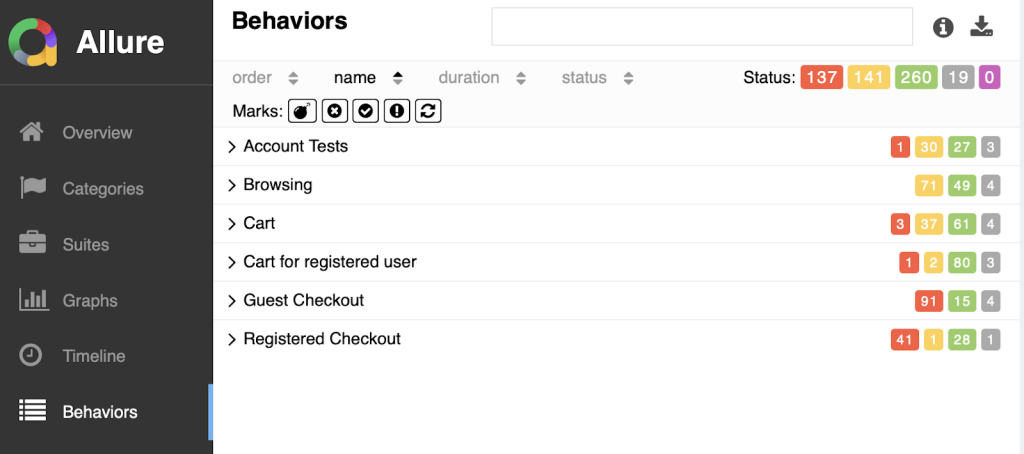
Grouping related test cases makes it easier to navigate the results and identify patterns or trends. If you use Neodymium or just Allure, you can use the @Feature and @Story annotations.
Error Categories
For comprehensive defect management, it’s crucial to have an overview of all issues from the most recent run. This allows reviewers to quickly identify if multiple failed test cases stem from a single underlying defect in the tested system. Additionally, it helps pinpoint the primary error responsible for the majority of test failures.
If you use Neodymium or Allure, you can use the categories file categories.json, which can be found in the test results directory. It is used to define custom defect categories in the form of a JSON array of objects. Each object defines one custom category, and the order of objects in the array is the order in which Allure will try to match the test result against the categories. To define a category, the following properties are used:
- String name: name of the category
- String messageRegex: regular expression, the test result’s message should match
- String traceRegex: regular expression, the test result’s trace should match
- Array matchedStatuses: array of statuses, the test result should be one of these values: “failed”, “broken”, “passed”, “skipped”, “unknown”
- boolean flaky: whether the test result should be marked as flaky or not
|
1 2 3 4 5 6 7 8 9 10 11 12 |
[ { "name": "Ignored tests", "messageRegex": ".*ignored.*", "matchedStatuses": ["skipped"] }, { "name": "Infrastructure problems", "messageRegex": ".*RuntimeException.*", "matchedStatuses": ["broken"] } ] |
Allure can also categorize the categories.json automatically based on the exception message, but problems can occur when Selenide and Allure work together. If Selenide takes screenshots on failure, they come with a unique ID which is added to the error messages, leading to unique error messages and errors not being categorized at all. We fixed that in Neodymium by removing the screenshot path from the error messages.
Visuals
It is important to transform the vast test suite data into easily digestible insights. Visual tools like screenshots or recordings can help with that, making reports more accessible.
Screenshots
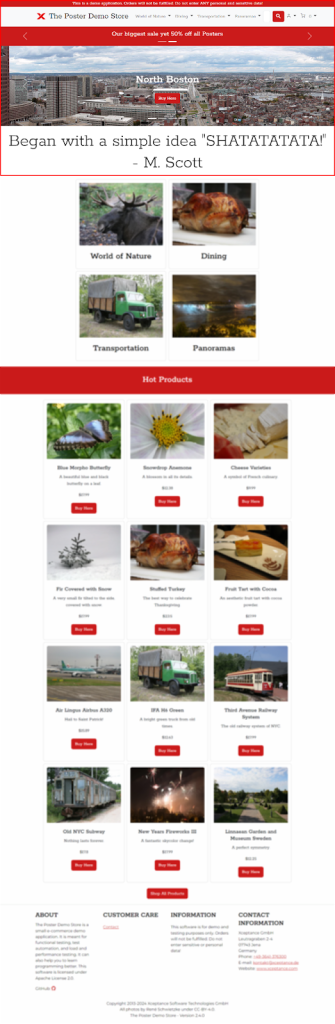
To continue making recurring errors reproducible as fast as possible, it makes sense to add a screenshot of the tested website during the error state to the report. With that, the reviewer not only has the stack trace to work with but can also see what exactly went wrong.
Most tools provide screenshots on failure, which is essential for debugging. To see even more details, we improved the already existing Selenide feature by providing the ability to make full-page screenshots in Neodymium. We also added the functionality to highlight the last element and the viewport in the full-page screenshot.
Video
As an extension to screenshots, it also makes sense to add a video recording of the whole test flow to the report. That enables the reviewer to see how the system reacted and what caused the unexpected behavior, especially when the highlighting of used elements is part of the video. The reviewer can simply follow the steps in the recording, just like a tutorial, to reproduce the error.
In Neodymium, this is part of our standard reporting. If you are interested in this feature, see our documentation on how to set it up in your project.
Summary
Clear and concise test automation reports are essential for efficient results analysis. They are especially valuable when sharing results with non-technical stakeholders. If you have chosen or perhaps will choose Neodymium as your preferred test automation tool, we remain committed to continuously improving its reporting feature to optimize the presentation and understanding of test outcomes, saving you time and effort.
Because Neodymium is open-source under a the MIT license, we invite you to support its development by providing feedback, pull requests, or just writing about it.
